Pointer Arrow (Direction/Aiming) ↗
💡
3
🔥
1

Arrow for indicating the players direction (8 directions).
Import Assets
- Import
RotateMoveDirection.csto your project. - Import the sprite “SPS_CrossHair” to you project. Set the following:
- Sprite Mode: Multiple
- Filter Mode: Point (no filter)
- Pixels Per Unit: 25
- Compression: None
- Apply changes
- Click in
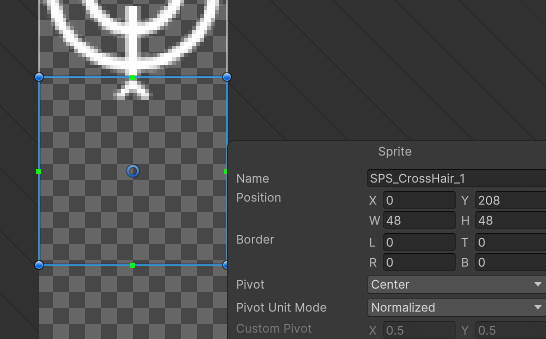
Sprite Editor, and create a sprite that will surround for the following (print in attachment):
- W: 48
- H: 48
- Y: 208
Create Pointer
- Open
0_Hero_Baseprefab, create a empty object calledPivotCrossHairand attachRotateMoveRirection.cs. Drag the0_Hero_baseto the target of this script. SetAxistoZ. - Create a Child object inside
PivotCrossHaircalledCrossHairRenderer. Add aScript Renderercomponent to it, assign inSpriteoption the sprite you importedSPS_CrossHair_0. Ajust the rotation “Z” og the object so that it’s facing the character - by default it should be-90.
Ajust to you liking:
- Ajust the position of
PivotCrossHairto the center of the player. In my case0.4position in Y axis did the job. - Size of the arrow - I advice you to change the ``Pixel Per Unit` in the texture/sprite. The bigger the number the smaller it gets.
💬 Comments (3)
Want to continue the conversation?