
Auto Save Feature
As the title says
First of all, you’re gonna import the 2 new scripts that i have attached to this message
Then you’re gonna open your GameConfig Script and add thse new lines in between yourSave Settings and UI Settings headers
[Header("Auto Save Settings")]
[Tooltip("Master switch for the autosave system.")]
public bool autoSaveEnabled = true;

[Tooltip("Time between autosaves (seconds). 0 = disabled.")]
[Min(0.0f)] public float autoSaveIntervalSeconds = 60.0f;

[Tooltip("Also autosave when the map transition finishes.")]
public bool autoSaveOnMapChange = true;

[Tooltip("Also autosave when the player levels up.")]
public bool autoSaveOnLevelUp = true;

[Tooltip("File name prefix for autosave slots. The final name is prefix + index, e.g. AUTOSAVE_SLOT_0.")]
public string autoSaveFilePrefix = "AUTOSAVE_SLOT_";

[Tooltip("How many autosave slots to rotate through.")]
[Range(1, 10)] public int autoSaveSlots = 3;
Now, head over to your SaveSystem Script, and start of by:
Replacing your current EraseSaveData body with this:
public static void EraseSaveData(string saveFileName)
{
    string filepath = Path.GetFullPath(Path.Combine(Application.persistentDataPath, saveFileName));

    // Delete main + .bak + .tmp
    SafeSaveUtility.DeleteAllVariants(filepath);
}
After that, Replace the whole ExtractSaveDataFromFile method with:
public static SaveDataBlock ExtractSaveDataFromFile(string saveFileName)
{
    string filepath = Path.GetFullPath(Path.Combine(Application.persistentDataPath, saveFileName));

    // Try main file, then .bak fallback
    string dataToLoad = SafeSaveUtility.TryReadWithBackup(filepath);

    if (string.IsNullOrEmpty(dataToLoad))
    {
        return null;
    }

    try
    {
        return JsonUtility.FromJson<SaveDataBlock>(dataToLoad);
    }
    catch (Exception e)
    {
        Debug.LogError($"Failed to deserialize save data '{filepath}': {e.Message}");
        return null;
    }
}
And last but not least, Replace the whole SaveToFile method with this version:
public void SaveToFile(string saveFileName)
{
    string filepath = Path.GetFullPath(Path.Combine(Application.persistentDataPath, saveFileName));

    try
    {
        SaveDataBlock saveFile = CreateDataBlock();

        string dataToStore = JsonUtility.ToJson(saveFile, true);

        // --- Safe, atomic write with backup ---
        bool ok = SafeSaveUtility.TryWriteJsonAtomic(filepath, dataToStore);

        if (!ok)
        {
            Debug.LogError($"Failed to save {filepath} to disk (SafeSaveUtility returned false).");
            return;
        }

        long dataSize = dataToStore.Length;
        string[] sizes = { "B", "KB", "MB", "GB" };
        int order = 0;
        while (dataSize >= 1024 && order < sizes.Length - 1)
        {
            order++;
            dataSize = dataSize / 1024;
        }

        Debug.Log($"Saved <b>{saveFileName}</b> to disk ({dataSize:0.##} {sizes[order]}).\n{filepath}");
    }
    catch (Exception e)
    {
        Debug.LogError($"Failed to save {filepath} to disk: {e.Message}");
    }
}
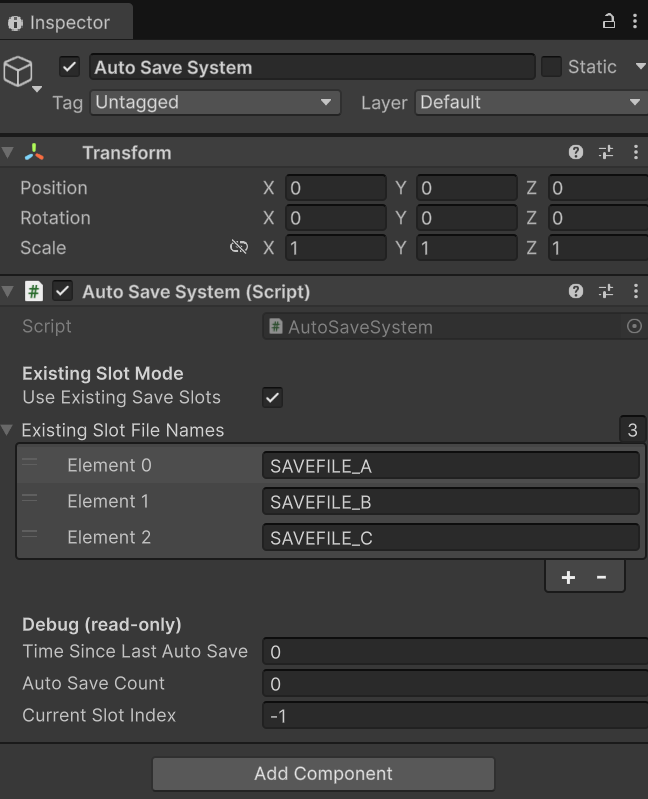
Now comes the step by step part, you’re gonna start by heading over to M2DEngine (or whatever you call it, the scene that holds GameManager and other systems) and create a new empty object inside the scene called Auto Save System
Add the AutoSaveSystem component to this, and expand Existing Slot File Names and enter the Save File Names (shown on image), if you did it correct it should look something like this
Note that you do NOT have to use all 3 save files like i do in the first image
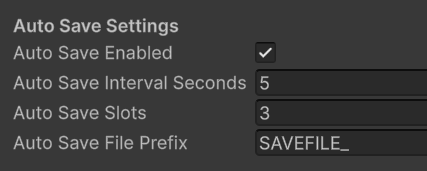
After this, go to CFG_Game and adjust those settings as you’d like
HOWEVER, make sure that Auto Save File Prefix says SAVEFILE_, this can NOT be changed
DONE!
If there’s any issues, let me know!
The System will trigger when you:
- Level up
- Or Enter a new scene
If it’s ready of course (change the interval seconds for this)
💬 Comments (3)
Want to continue the conversation?